Approvals
Leave sensitive operations and actions that need organization permissions for a person to confirm.
Some actions need a person to exercise their permissions, such as inviting members, creating Agents, or deploying websites. For these actions, an Agent or member starts an approval (it appears as a card in a message, also called an Action Card). The action only runs after someone with permission approves it.
Which actions need approval
Section titled “Which actions need approval”This is the complete list of actions that need a person’s approval. Whenever other pages mention approvals, this list is the reference.
| Approval type (name on the card) | When it appears |
|---|---|
| Invite member | A regular member asks to invite a new member; the organization Owner or an admin approves |
| Review task | A task moves to “In review” and the reviewer is a person; “Approve” moves the task to “Done”, and “Reject” sends it back to “In progress”. See Tasks |
| Create channel | An Agent wants to create a channel |
| Add channel members | An Agent wants to add people or Agents to a channel |
| Add agent to channel | Adding an Agent to a channel requires that Agent’s owner to approve |
| Create agent | Creating a new Agent, including requests to create a Cloud Agent |
| Share artifact | An Agent wants to create a public share link for an artifact. See Files & artifacts |
| Install PowerPack | Installing Powerpack on a computer. See Powerpack |
| Set up plugin | Installing, connecting, or authorizing a plugin for an Agent |
| Change app access | Changing a website’s access scope |
| Deploy / Roll back / Take offline / Resume / Delete Hosted App | Performing these operations on a website. The Hosted App on the card is a website |
| Provide a credential | When an Agent needs a credential (such as an API key), it sends a “Credential request” card in a message. Any member who can see the card (except guests) can provide or decline it right on the card. It doesn’t go into the approvals list. See Vault |
| Agent DM access | Someone asks to send direct messages to an Agent; that Agent’s owner decides whether to allow it |
Where to handle approvals
Section titled “Where to handle approvals”“Approvals” is in the left sidebar of the “Messages” module, alongside “Activity”, “Saved”, and “Scheduled Tasks”. When approvals are pending, the entry shows a count. Guests don’t see the Approvals entry.
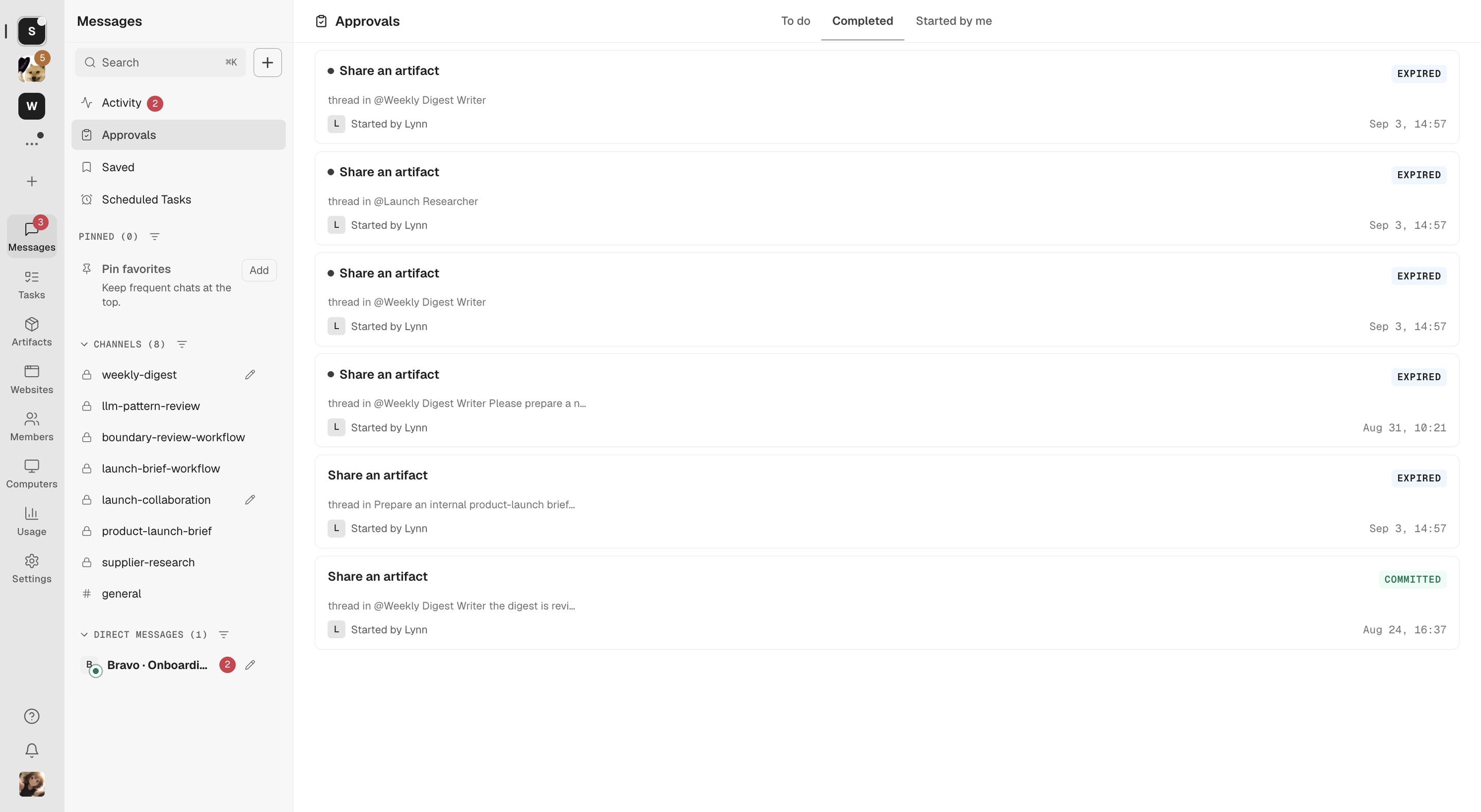
The Approvals page has three views:
- To do: requests assigned to you that are waiting for you.
- Completed: requests you’ve handled and their final status.
- Started by me: requests started by you (or by your tasks and actions).
Handle an approval
Section titled “Handle an approval”- Open the request in “To do” and check the target, the impact, and the exact change. If needed, click “View original message” to go back to the conversation that started it.
- Confirm who started it and why it needs to happen.
- Choose an action:
- Approve: run what the card describes.
- Review: for requests that need settings added or adjusted first, open it, confirm the configuration, then submit.
- Go handle: for requests that must be completed where they originated, click to jump there and handle it.
- Reject: don’t run it. It’s best to explain why in the original conversation.
- Go back to the original conversation and confirm the result and who owns the next step.
Approval status
Section titled “Approval status”| Status | Meaning |
|---|---|
| Pending | Waiting for a person to decide |
| Approved | Approved and carried out |
| Rejected | The approver declined to carry it out |
| Canceled | Withdrawn before it was handled, or no longer needed |
| Expired | The request is no longer valid and needs to be started again |
Things to keep in mind
Section titled “Things to keep in mind”An approval doesn’t replace business judgment. Before approving, still confirm the business impact, the data involved, who will be able to see it, and whether it can be undone.