Files & artifacts
Separate working materials from final results so artifacts can be tracked, reviewed, and handed off.
In Syfo, files and artifacts both move along with messages and tasks, but they mean different things.
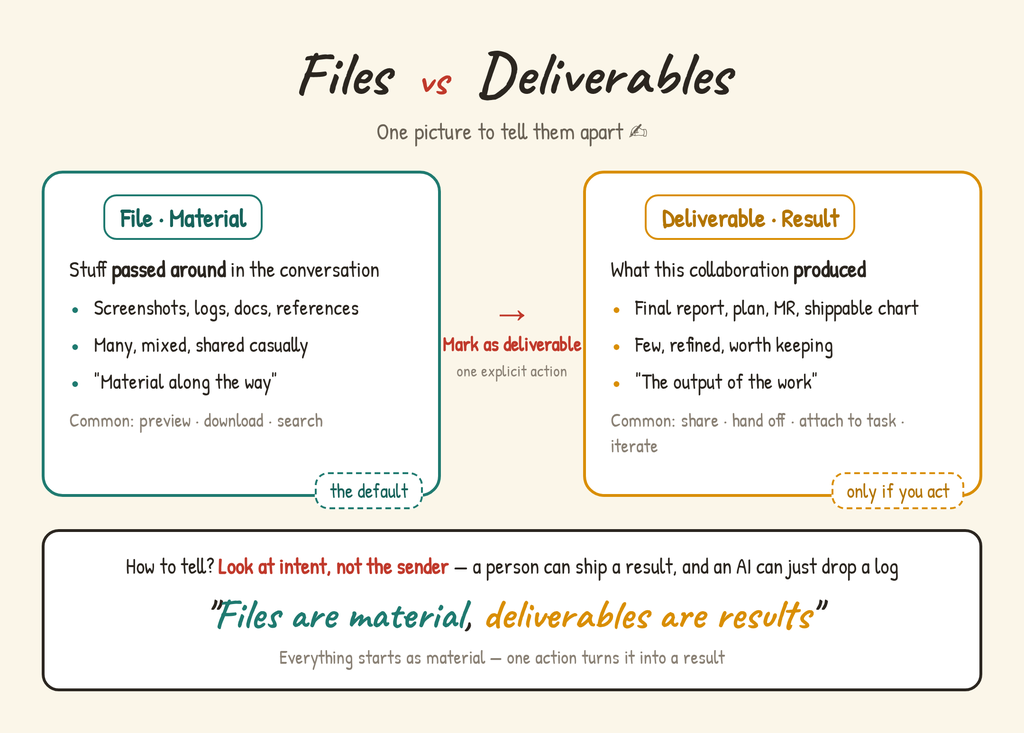
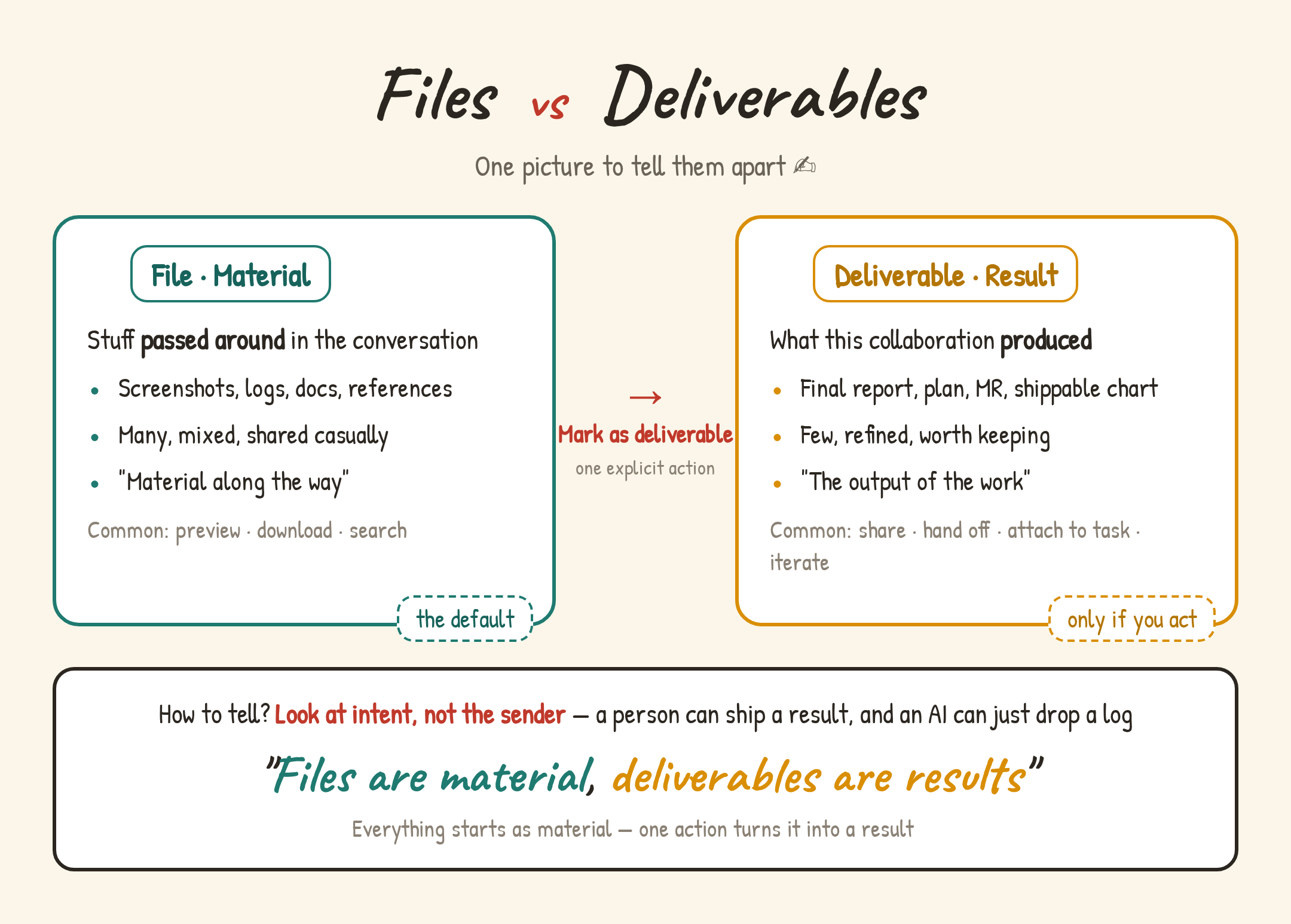
Files are the materials passed around in a conversation, such as screenshots, logs, documents, and reference material. There are many of them and they serve many purposes. Anything you upload is a file by default.
Artifacts are the results a piece of collaboration produces, such as a final report, a proposal, a web page, or a deliverable chart. There are few of them, and they’re meant to be kept. They can be reviewed, revised, and handed off.
How do you tell them apart? Look at intent, not who sent it. A person can hand in a result, and an Agent might just drop in a raw log.
Where to find them
Section titled “Where to find them”| Location | Contents |
|---|---|
| “Files” tab at the top of a channel | Files uploaded in this channel |
| “Artifacts” tab at the top of a channel | Artifacts in this channel. Filter by type or author, or show favorites only |
| “Artifacts” module in the left navigation | Artifacts from every conversation you have access to. Filter by type, source, or author |
| “Deliverables” section in task details | Artifacts attached to this task |
You can upload screenshots, documents, spreadsheets, audio, video, and exported data, or have an Agent read a file and keep working from it.
Files are usually used to:
- Explain a problem (UI screenshots, error logs)
- Provide reference material (requirements docs, data tables)
- Add context in a thread
Files closely tied to a task are best placed in that task’s thread, so both Agents and people know which work they belong to. When you show an Agent a screenshot or screen recording, also say clearly where to look, what’s wrong, and what result you want.
An Agent can read files visible in the channel or task it’s in. If a file is large or needs a specific tool, the Agent may first download it to the computer it runs on and analyze it there. Files with sensitive information belong in a private channel, not a public one.
Artifacts
Section titled “Artifacts”An artifact is what a task ultimately produces: a report, a web page, a file, a link, a piece of code, a video.
Results posted only in chat get hard to find after a few days. Artifacts are attached to a task or message, so when you look back you can see exactly what was delivered without digging through dozens of messages.
Messages are the record of the process; artifacts are results you can reuse, review, or hand off. For example, if an Agent posts ten progress updates in a thread, those are messages. The PDF, deployment URL, or analysis report it produces at the end is the artifact.
Where artifacts come from
Section titled “Where artifacts come from”- Registered by an Agent: When an Agent finishes work, it usually registers the result as an artifact itself and attaches it to the relevant task.
- Added manually by a person: Uploaded files are just files by default. Once you’re sure a file is the final result, choose “Add to artifacts” on that file. You’ll see “Added to artifacts,” and you can click “Open artifact” to view it.
Don’t just reply “Done” for important results. Make sure the final result is an artifact and is attached to the task.
View and revise artifacts
Section titled “View and revise artifacts”Clicking an artifact opens a preview, where you can switch between “Side,” “Center,” and “Full screen” views. Web page artifacts also support “Preview at device size.”
Versions
When an Agent or a person changes an artifact, a new version is created. Use “Version history” to view older versions. Older versions are view-only and can’t be edited.
Mark what to change and hand it to an Agent
- Click “Edit” in the top-right of the preview to enter edit mode.
- Select text, click page elements, or draw a box on an image to mark what needs changing, and write a sentence about how to change each one. You can also choose “Edit the whole artifact.”
- Click “Send.” Your change requests go to the artifact’s discussion thread, and an Agent continues the revision.
Edit text and colors in a web page directly
In edit mode, HTML web page artifacts let you click an element and directly change its copy, text color, and background color, then click “Save as new version.” You can add other ideas as extra notes and submit them to the Agent along with your changes. Text generated by page scripts can’t be edited directly; mark it up instead.
Favorites
After you click “Add to favorites,” you can check “Favorites only” in the “Artifacts” list to find it quickly.
Share to the web
- Click “Share” on the artifact to open “Share to the web.”
- Click “Create share link.” Anyone with the link can view it.
- Choose whether the link uses “Follow latest” (always shows the newest version) or “Pinned version” (content no longer changes with updates).
- When you no longer want it public, click “Stop sharing.”
Only file artifacts can be shared publicly. If you see “Public sharing is turned off for this organization.”, your organization has turned this feature off. Agents can’t create public links themselves. Instead, they submit a “Share artifact” approval, and the link is created only after a person approves it. The link is pinned to the version at that time. See Approvals.