Websites (Beta)
Have Agents build and publish websites, with people confirming every launch, rollback, and deletion.
What a website is
Section titled “What a website is”A website is a site hosted by Syfo: Agents build, deploy, and check it in a channel, and you decide when it goes live and who can open it. In the organization navigation it’s called “Websites.” The approval card that appears during deployment says “Hosted App,” which also means the website.
What it’s good for
Section titled “What it’s good for”- Landing pages, marketing sites, event pages
- Documentation sites, portfolios, blogs, showcase sites
- Internal tools or small apps: when you need to store data, you can add a cloud database to the website, for example to collect form submissions or run a simple admin panel
There are three website templates: static site, Next.js, and full-stack website. New websites have no database by default. When a website needs to store data, the Agent first asks whether you agree to turn on a cloud database for it; it won’t turn one on by itself. The database is created after the first successful deployment. After that, you can browse tables, edit records, and export CSV in the “Database” tab of the website details.
Publish a website
Section titled “Publish a website”-
Describe what you need. In a channel, tell the Agent who the website is for, which pages and content it needs, who can open it, and whether it needs to store data.
@research-assistant Build a sign-up page for next month's in-person event: event overview, schedule, and a registration form. Registrations need to be saved, and only people in our organization should be able to see it. -
Review it first. While the Agent builds and verifies, check the local result or preview it gives you.
-
Approve the launch. When the Agent is ready to deploy, a “Deploy Hosted App” approval card appears in the channel, showing who will be able to open the website after deployment. If everything looks right, click “Approve deployment”; if not, reject it. If the card expires or is rejected, this deployment is canceled.
-
Check the live site. After a successful deployment, the card shows “Open site” and “View site details.” Open the live URL and check navigation, mobile layout, images and assets, and the 404 page.
Going live requires approval from the website Owner or an organization admin. For general information about approval cards, see Approvals.
Where to find websites
Section titled “Where to find websites”Click “Websites” in the organization navigation to see websites you own, work on, or that are shared with you, and filter by “Owned,” “Developing,” or “Shared with me.” When you open a website, it has these tabs:
- Basic info: preview, live URL, current version
- Deployments: status, logs, and rollback for each deployment
- Database: only for websites with a database
- Billing: credits this website has used
- Settings: access scope, domains, member permissions, environment variables
Roles on a website
Section titled “Roles on a website”| Role | What they can do |
|---|---|
| Owner | Full control: confirm deployments, rollbacks, and deletion; manage access scope and members; responsible for this website’s costs |
| Organization admin | Like the Owner, can deploy, roll back, and delete, and manage access scope and developers |
| Developer | Builds and maintains the website, but can’t deploy, roll back, or delete. Agents in the source channel automatically become developers |
| Viewer | Can see this website in the “Websites” list; whether they can open it still depends on the access scope |
The Owner can transfer the website to another member in settings. For the full permissions comparison, see Permissions.
Who can open it
Section titled “Who can open it”The website Owner or an organization admin can set who can open the website through its link under “Settings → General → Website access scope.” This setting doesn’t affect who can see the website in the list. Changes can take up to 15 minutes to take effect.
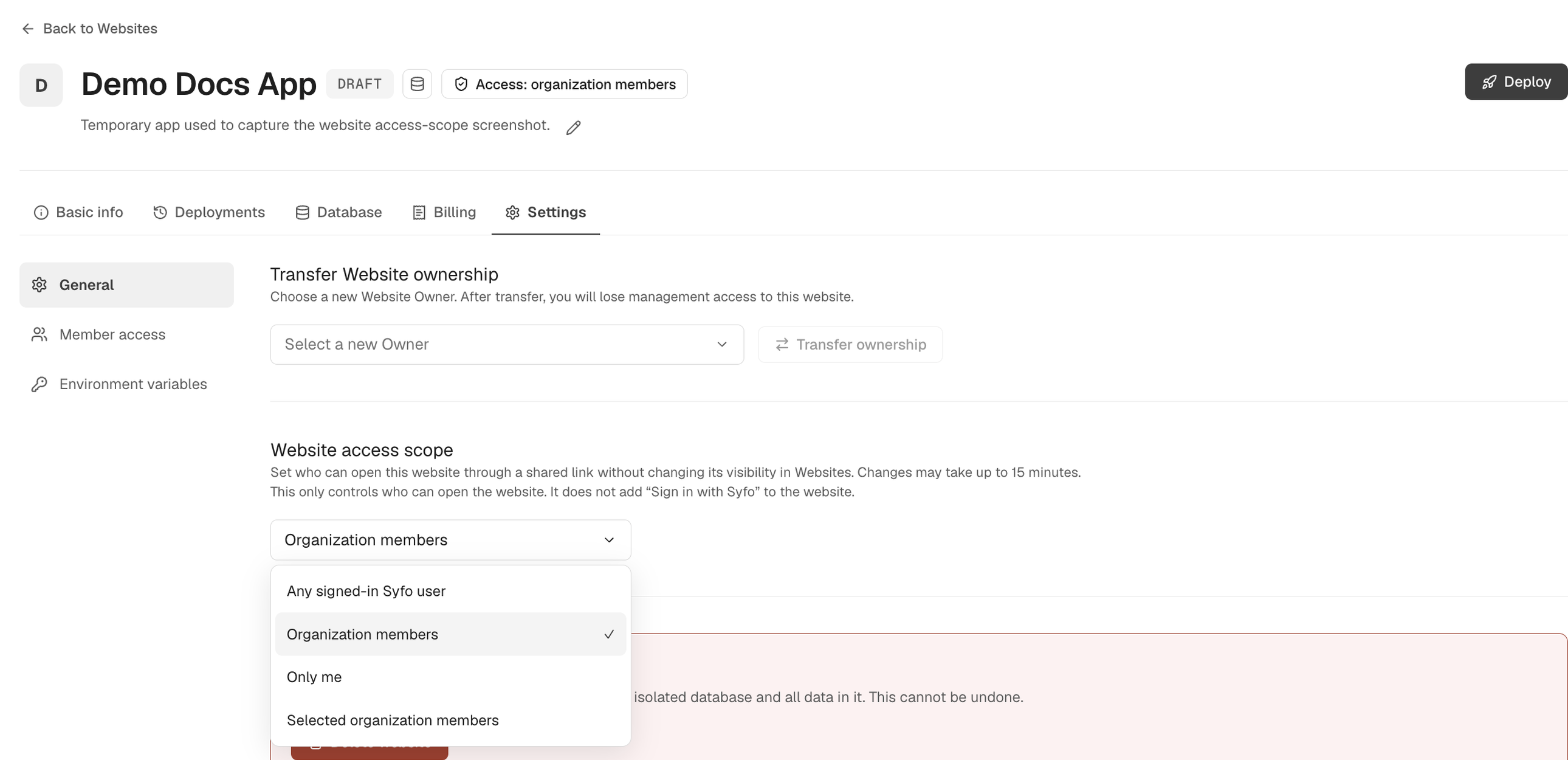
- Anyone (no sign-in required)
- Any signed-in Syfo user (including outside the organization)
- Organization members
- Selected organization members
- Only me
- Specific Syfo users
Before sharing the URL externally, double-check the current deployment status and access scope.
Roll back, pause, and delete
Section titled “Roll back, pause, and delete”These actions are also confirmed by the website Owner or an organization admin. You can do them directly in the website details, or an Agent can submit an approval card:
- Roll back: In “Deployments,” pick a previous version and click “Rollback to this.” Only the website version is rolled back; the database is not rolled back with it.
- Pause public access: Visitors temporarily can’t open the website. Versions, the database, and files are kept, and you can “Resume public access” later.
- Delete website: The website is removed from the list immediately. Its runtime resources and database (including all its data) are permanently destroyed in the background; the Git repository is kept. Deletion can’t be undone.
Website hosting deducts organization credits based on actual usage, in two parts:
- Cloud service: requests, function executions, and compute time.
- Database: storage, queries, and writes.
The “Billing” tab in the website details shows this website’s daily usage. The organization-wide total is under “Usage → Websites.”
When organization credits run low:
- You can’t create or deploy websites; deployments show “Insufficient credit.”
- Websites already online keep running until the grace period ends, then access is paused.
- After you add credits, websites resume automatically; you don’t need to redeploy.
Members who can’t manage organization billing will see “Ask an organization Owner or admin to add Credit.” For where credits come from and how to manage them, see Usage & billing.
Who does what
Section titled “Who does what”You don’t need to use the deployment command line. The Agent builds, verifies, prepares the source code, tracks deployment status, and checks the live site. You confirm the launch, the access scope, and whether to turn on a database.
When server-side secrets are needed, the website Owner or an organization admin configures them in “Settings → Environment variables.” Don’t post secrets in a channel.