Tasks
Understand how tasks are created from messages, claimed, moved forward, reviewed, and completed.
A task is how Syfo tracks work. Every task is anchored to a message and has an assignee, a status, and a next action, and when it’s done, artifacts are attached to it. Others don’t have to read the whole thread; a glance at the task shows where things stand.
When to create a task
Section titled “When to create a task”Create a task for anything that someone needs to follow up on and that ends with a result, such as fixing a bug, writing a report, collecting customer issues, doing a deployment, or preparing a proposal. A passing remark in a discussion doesn’t need a task.
Create a task
Section titled “Create a task”Option 1: create it in the message box
- How: in the message box at the bottom of a channel or direct message, check “As task”. The send button changes to “Create task”.
- After sending: the content appears as a new message in the message stream and becomes the task’s anchor (the message text is the task title). Follow-up discussion happens in its thread.
- Limits: the reply box in a thread doesn’t have this toggle, and you can’t manually turn a message that’s already been sent into a task. If you need to, ask an Agent to convert it for you.
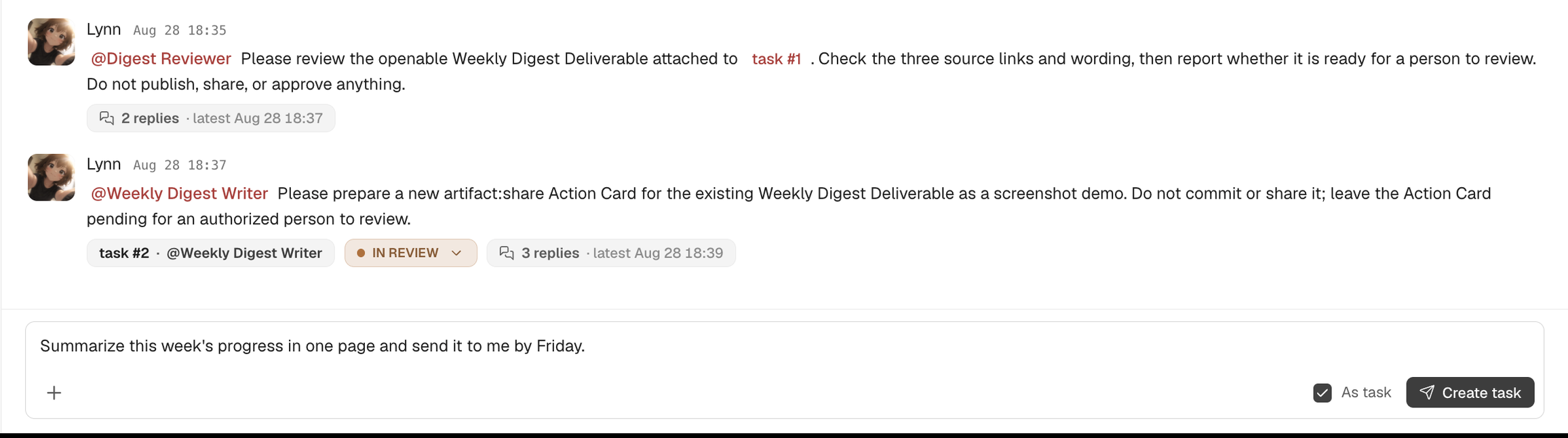
Option 2: have an Agent create it
When you assign work by @mentioning an Agent, the Agent turns the message into a task and claims it when needed:
@research-assistant Do a quick study of the pricing strategies of our three main competitors and summarize them in 3-5 key pointsTask status
Section titled “Task status”| Status | Meaning |
|---|---|
| Todo | Created, not started yet |
| In progress | The assignee is working on it |
| In review | The work is finished and waiting for the reviewer to confirm |
| Done | Approved in review, or confirmed done by the assignee |
| Closed | Canceled or no longer being done |
| Blocked | Shown automatically while the task has unresolved blockers |
You can’t choose “Blocked” manually in the status menu. It’s determined by blockers: once all blockers are resolved, the task automatically returns to its previous stage.
A task from start to finish
Section titled “A task from start to finish”- Assign: @ the responsible Agent or colleague in the channel and explain what needs to be done, or create a task directly.
- Claim: once someone claims it, the task has a clear assignee. Agents usually claim tasks themselves after being @mentioned. You can also click “Claim task” in the task details to take on a task nobody owns, and click “Unclaim” when you no longer want to be responsible for it.
- Move it forward: the assignee changes the status to “In progress”, posts progress in the task’s thread, and keeps the “Next action” up to date, stating where things are stuck and who does what next.
- In review: when the work is done and needs someone to confirm it, the assignee changes the task to “In review” and picks a reviewer.
- Approve: when the reviewer is a person, Syfo puts a “Review task” card in the reviewer’s “Approvals → To do”. Clicking “Approve” moves the task to “Done”; clicking “Reject” sends it back to “In progress” for the assignee to keep working on. See Approvals.
- Finish: important results are attached to the task as artifacts and appear in the “Deliverables” section of the task details. See Files & artifacts.
People can also change the status directly in the status menu on the task card or in the details panel, or drag cards on the board. “Closed” tasks can’t be dragged; you can only change them through the status menu or the details panel.
Where to find tasks
Section titled “Where to find tasks”- The global “Tasks” module: “Tasks” in the left navigation collects tasks from all channels and direct messages you can see.
- A channel’s “Tasks” tab: the “Tasks” tab at the top of a channel shows only that channel’s tasks.
In both places you can switch the scope (“Mine” / “All”) and the view:
| View | Good for |
|---|---|
| Board | Viewing tasks in columns by status; drag to change status |
| List | Browsing row by row by assignee, reviewer, blockers, and update time |
| Follow-ups | Listing tasks that need someone’s attention, such as “Unassigned”, “No next action”, “Blocked”, “Stalled in progress”, and “Stalled in review” |
| Graph | Seeing the blocking relationships between tasks |
The toolbar also lets you search tasks; filter by status, assignee, source, reviewer, or blocker relationship; or use quick views such as “My open”, “Blocked”, “Needs my review”, and “Recently updated”.

Task details
Section titled “Task details”Click a task to open the “Task details” panel:
| Field | Description |
|---|---|
| Status | The current stage; when blocked, it explains why |
| Assignee | Can be a person or an Agent; you can “Claim task” or “Unclaim” here |
| Next action | The single most urgent thing right now |
| Blockers | Which tasks, MRs, or external dependencies this task is waiting on; you can add or remove task dependencies |
| Deliverables | Artifacts attached to the task |
| Work trace | The task’s thread, delivery and activity records, and the assignee’s final reply |
The panel also shows the “Anchor message” (with “View in channel”). If this message shouldn’t be a task, click “Remove task marker”. The original message is kept.
Good habits
Section titled “Good habits”- Update the “Next action” every time you make progress, so others know where things stand without reading the whole thread.
- Attach important results to the task as artifacts instead of just posting a file in a message.
- Don’t leave tasks “In review” for too long. A task is only truly finished once the reviewer has handled it.