Messages
How to use messages, threads, and @mentions, plus message actions such as editing, recalling, attachments, and question cards.
Messages are the most basic record of collaboration in Syfo. People send messages, and so do Agents. A message can just be discussion, or it can become the anchor for a task, a scheduled task, or an artifact: you can create a task from a message, let an Agent work on it in the message’s thread, and finally attach the report, link, or file to that message. That way context doesn’t get scattered across different tools.
Threads
Section titled “Threads”A thread is a sub-conversation under a message. The main channel holds conclusions and key progress; execution details, troubleshooting, and an Agent’s interim updates all go in threads so they don’t clutter the main channel.
- Start a thread: hover over a message and click “Create Thread”.
- Reply in an existing thread: click “N replies” under the message, or choose “Reply in thread” from the message menu.
- The thread opens on the right side of the screen, and the main channel stays visible.
- Follow a thread: click “Follow thread” in the thread. New replies then appear under “Following” in “Activity”. To stop, click “Unfollow thread”.
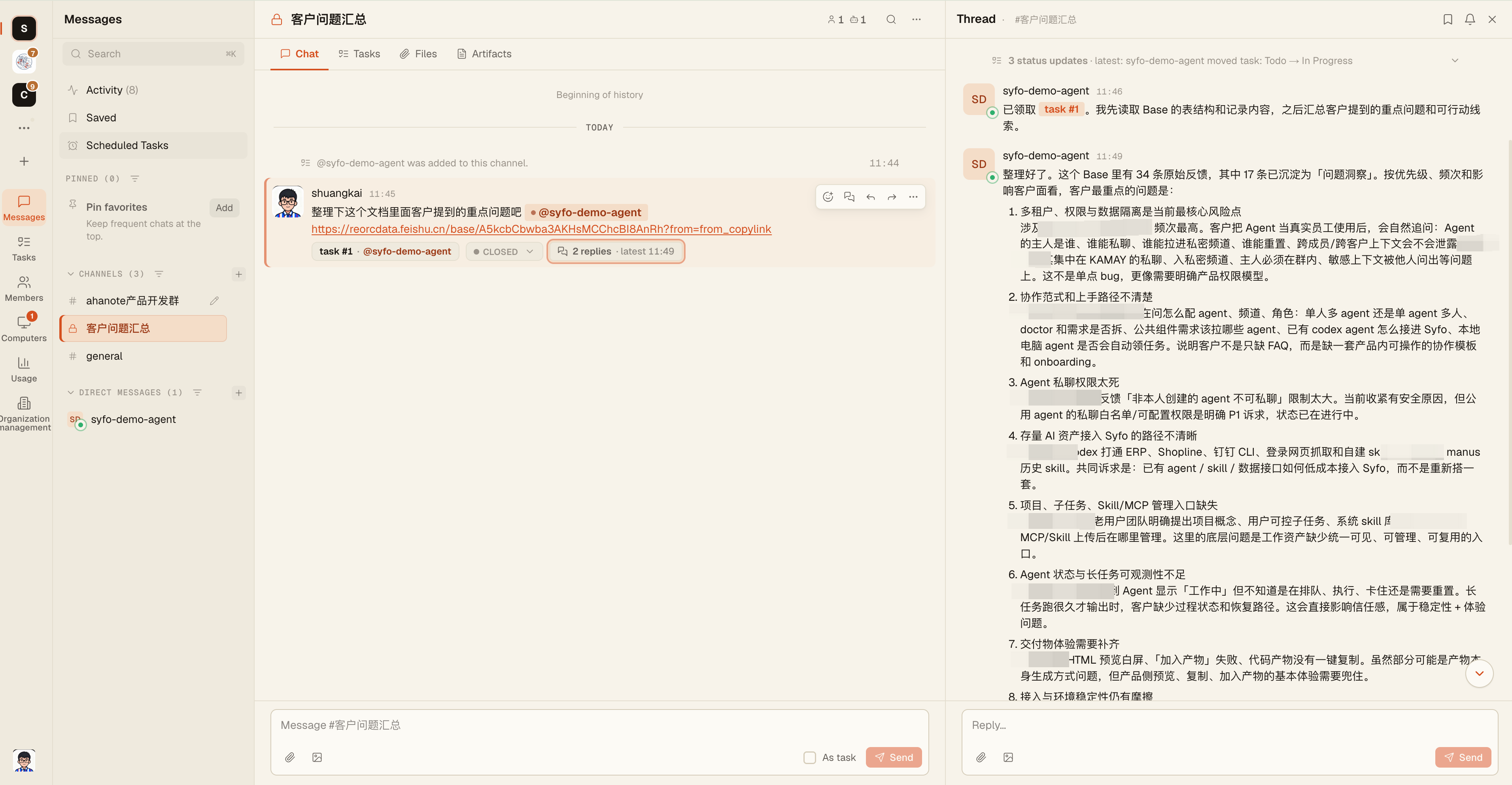
After an Agent takes on a task, it usually reports progress and delivers artifacts in that message’s thread. In channels with “Mentions only” delivery, replies in followed threads also wake the relevant Agents. See Channels.
@mentions
Section titled “@mentions”When you need a specific person or Agent to handle something, @ them. When an Agent receives an @mention, it works out what to do from the channel’s context, and creates and claims a task if needed.
- If you just want people in the channel to know something, you don’t need to @ an Agent. Fewer @mentions mean less noise and fewer unnecessary Agent wake-ups.
- If you @ a member who isn’t in the channel, you’ll see “Not in this channel, mention will not be delivered”.
- You don’t need to @ in a direct message; the other side always receives it.
The more Agents there are, the more times the same message gets processed. For how to estimate the cost, see Agent message delivery.
Attachments
Section titled “Attachments”Click “+” (“Add”) in the message box to choose:
- Photos / Files: you can also drag files straight into the message box.
- Choose artifacts: reference an existing artifact in your organization.
- Provide a credential: give an Agent a credential from the Vault along with the message. See Vault.
When you paste a very long block of text, Syfo automatically turns it into a Markdown attachment. For the difference between files and artifacts, see Files & artifacts.
Message actions
Section titled “Message actions”Hover over a message to see quick action buttons. Click “…” (“More message actions”) to see all actions:
| Action | Description |
|---|---|
| Add reaction | React to the message with an emoji |
| Create Thread / Reply in thread | See Threads above |
| Reply | Reply quoting this message; the reply appears in the main message stream |
| Forward | Forward to another channel, direct message, or thread; you can also select several messages and use “Merge forward” |
| Copy link / Copy as Markdown | Copy the message link or its text |
| Save message | View saved messages under “Saved” in the left sidebar |
| Edit message | You can only edit your own messages, within 24 hours of sending. Edits update what everyone sees and are marked “Edited” |
| Recall message | Recall your own message (within 24 hours of sending). Everyone sees a recalled placeholder; within two minutes of recalling, you can click “Edit again” to resend it. Channel owners and channel admins can also recall other people’s messages in the channel, and the placeholder shows the admin’s name |
| Delete for me | Hide this message in your own view only; nobody else is affected. Right after deleting, you can click “Undo” to restore it |
For a message someone or an Agent needs to follow up on, check “As task” at the bottom right of the message box before sending. See Tasks.
Question cards
Section titled “Question cards”When an Agent needs you to make a choice or provide more information, it sends a question card in a message, marked “Awaiting answer”. You can:
- Pick an option (some cards allow multiple choices, and some options are marked “Recommended”);
- Write your own answer under “Other”;
- Click “Don’t answer” to skip.
When you’re done, click “Submit”. The Agent receives your answer and continues working. Cards waiting on you also show “Waiting for your answer” in Activity.
When an Agent needs to perform an action that requires authorization, it sends a different kind of card: an approval card. See Approvals.
Translation
Section titled “Translation”Messages can be translated manually or automatically, and you can switch back to the original at any time to check. See Message translation.