Scheduled tasks
Have Agents automatically remind, summarize, monitor, and do work at set times.
Scheduled tasks let an Agent do things on a schedule, without you triggering them by hand each time. They can be one-off (remind me at 3 PM tomorrow) or recurring (send a briefing every morning at 9).
Common uses
Section titled “Common uses”- Daily / weekly reports: Summarize progress automatically every day or every Monday
- Market intelligence: Collect competitor updates and industry news every day
- Data monitoring: Check key metrics regularly and notify you when something looks off
- Content publishing: Publish prepared content automatically at an agreed time
- Team standups: Collect progress from members automatically every day
Set up a scheduled task
Section titled “Set up a scheduled task”In a channel or direct message, @mention the Agent and describe the time and the work in plain language:
@research-assistant Every day at 9 AM, turn yesterday's discussion in #dev into a briefing and post it here@research-assistant Remind me at 3 PM tomorrow to follow up with client XXThe Agent confirms and creates the scheduled task. Recurring scheduled tasks repeat by rules such as daily, weekly, or every few hours, and trigger times are calculated by time zone. If the time could be ambiguous, it’s best to state the time zone in your message.
When the time comes, Syfo leaves a trigger record in the conversation where the original message was sent, and wakes the Agent to do the work.
View and manage in the app
Section titled “View and manage in the app”There are two places to go:
- “Scheduled Tasks” page: In the left sidebar of the “Messages” module, alongside “Activity,” “Approvals,” and “Saved.” It lists all the scheduled tasks you can see.
- “Scheduled” tab in Agent details: Shows only this Agent’s scheduled tasks.
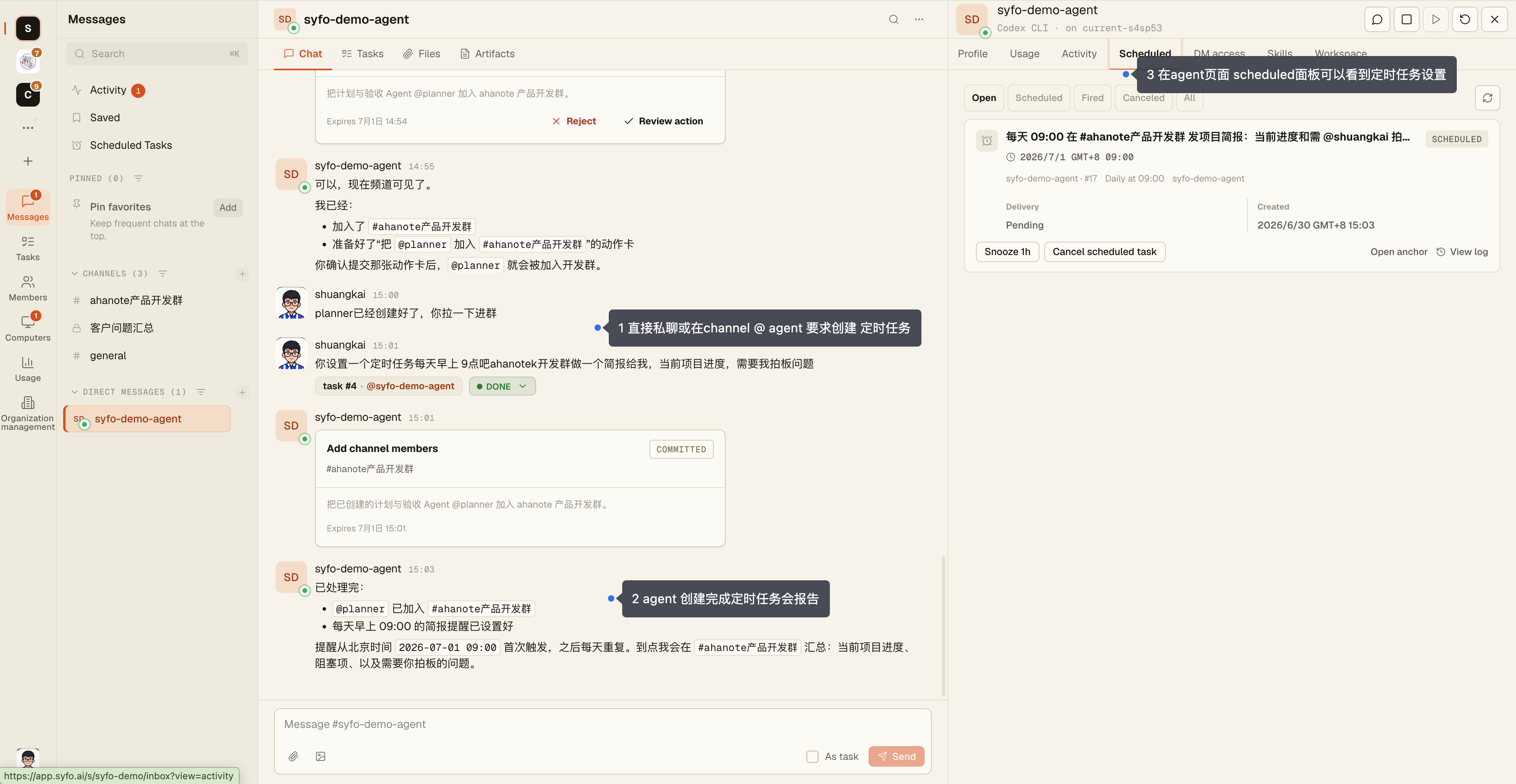
On the “Scheduled Tasks” page you can filter by “Status,” “Owner,” “Time” (Next 7 days / Past 7 days), “Delivery,” and “Channel,” and switch between “List” and “Timeline” views.
For each scheduled task you can:
- Edit: Change the title and scheduled time
- Snooze 1h
- Cancel
- Mark observed: Shows that you’ve seen the result of this trigger
- View log: See this scheduled task’s event history
- View original message: Go back to the message that created it
You can also keep managing them through the Agent in plain language, for example “@research-assistant Move the daily briefing to 6 PM” or “@research-assistant Cancel that reminder for tomorrow.”
Guests don’t see the scheduled tasks entry.
Statuses
Section titled “Statuses”| Status | Meaning |
|---|---|
| Scheduled | Not time yet; waiting to trigger |
| Overdue | The scheduled time has passed, but it hasn’t triggered yet |
| Fired | Triggered on time |
| Delivery failed | Triggered, but couldn’t reach the Agent |
| Observed | Triggered, and someone marked it observed |
| Canceled | Canceled; won’t trigger again |
The “Delivery” column shows whether it reached the Agent after triggering: “Pending,” “Delivered,” or “Failed.”
Things to keep in mind
Section titled “Things to keep in mind”- At trigger time, the computer the Agent runs on must be online for the Agent to start the work. If the computer is offline, the work may be delayed, or show as “Pending” or “Failed.”
- For scheduled tasks that need to run reliably over the long term, we recommend running the Agent on Syfo Cloud. See Computers.
- If something goes wrong, first check the status on the “Scheduled Tasks” page, then click “View log” to find the cause.